| |
|
New Features in the Mac Version
Discover what's new in FastTrack Schedule 9 with this comprehensive list of new features and enhancements.
Easily share, manage, and merge projects
Directly integrate with Microsoft Project® and other applications
Simplify project planning
Enhance the presentation of project plans
(PDF: 297 KB)
Easily share, manage, and merge projects
Project Consolidation
Stay focused on the big picture while you monitor the progress of project teams. Consolidate separate FastTrack Schedule files into a single master file to view multiple projects or a multi-phased project. Easily merge files to report overall project status or drill-down into distinct project phases. By consolidating schedules, planning and controlling projects is easier than ever.
- Consolidate multiple projects into to a master project file
- Consolidation icons and summary bars clearly identify all merged projects
- Consolidate projects as subprojects sharing a common Project Finish Date with the Master, or as separate projects with different Project Finish Dates
- Consolidation works across platforms, so files can originate from either the Windows or Mac versions of FastTrack Schedule 9
- Consolidated projects retain all custom formatting including bar styles, legends, pictures, and textboxes
On-demand project updates
Update projects in a master file individually or all at once. Get the most recent version of consolidated files when you want and as often as you want. Team members can continue to work in subordinate files while their projects are viewed simultaneously in master files.
Enhanced and simplified linking
Linking activities is easier and more consistent. In accordance with PMI (Project Management Institute) practices, FastTrack Schedule 9 supports CPM scheduling with four standard link types and eight constraint types.
- New start to finish links
- Link activities quickly by selecting activity rows and clicking the link button
- Link tasks by typing in predecessor/successor columns
- Link Information form with link type and link duration controls
Eight levels of link constraints
Maintain project control as changes occur with eight different constraint types. Set soft, medium, or hard constraint levels between related tasks to manage bar behavior and stay on track as your project progresses.
- Eight constraint types: As Soon As Possible, As Late As Possible, Start On Or After, Start On Or Before, Finish On Or After, Finish On Or Before, Must Start On, Must Finish On
Capture and store multiple Baselines
Monitor and measure your progress by capturing project baselines. Store up to ten baselines to document the status of project tasks at different points within a project’s life cycle. Then use baselines to analyze planned versus actual to evaluate performance.
AutoArchive, AutoSave for peace of mind
Automatically archive your open FastTrack Schedule files by saving project snapshots at regular intervals. Use these best of breed archiving features as your safety net to back-up project plans.
- Set archive time interval in minutes, hours, or days
- Customize file-naming with prefixes/suffixes that contain specific numbers, dates/times, and unique separators
- Define default AutoArchive directory and set auto-archive upon closing a file
File Properties with privacy preferences
Add key information to project files including project due date, authors, comments, and keywords. This file-specific metadata is searchable using various OS level search tools, and sensitive information can be controlled with four levels of privacy settings.
Spotlight support for Mac OS X Tiger
Use Spotlight to pinpoint important project details contained within your FastTrack Schedule files. Scan file-specific metadata to locate the “who, what, and when” of your projects.
Directly integrate with Microsoft Project® and other applications
Easier data exchange with Microsoft Project®
It’s easier than ever to exchange data between FastTrack Schedule and Microsoft Project. Through improvements in XML, MPX and the ability to open Microsoft Project (.mpp, .mpt) files directly in FastTrack Schedule, you can now transfer data with all versions of Microsoft Project.
Open Microsoft Project® MPP, MPT files directly
Acquiring data from Microsoft Project is now as easy as File, Open. With FastTrack Schedule 9 you can now open MS Project (.mpp, .mpt) files directly, making it easy to switch from Microsoft Project to FastTrack Schedule.
Enhanced XML and MPX support
Exchanging project data between FastTrack Schedule and Microsoft Project is easier and more reliable with improved data compatibility through XML and MPX. FastTrack Schedule 9 supports opening and saving in these data formats.
Mindjet® MindManager® integration
Improve your project workflow by using FastTrack Schedule in tandem with Mindjet MindManager. Whether you're on a Mac or a PC, you can now transform MindManager maps into FastTrack Schedules to easily track, manage, and execute your project plans. From concept to completion, FastTrack Schedule's integration with MindManager is an ideal pathway for planning and executing project initiatives.
Support for iCalendar (.ics) files
With iCalendar support, it’s easy to share project tasks with Outlook, iCal, and other popular organizers. Build schedules quickly by importing iCalendar events or save schedules as iCalendars to share project tasks with others.
Publish projects as iCalendars to remote servers
Publish projects in this standard calendar format to intranets or remote servers for team members to view through a web browser. Sharing plans as iCalendars is an easy way to communicate key project events to others who may not be familiar with Gantt charts or who don’t use FastTrack Schedule.
Direct export to iCal®
Export specific tasks or entire projects from FastTrack Schedule 9 to your favorite Mac organizer, iCal. When publishing directly to iCal, project events can be easily added to any of your current calendars or to a new calendar.
Publish directly to .Mac
Make it easy for team members and clients to view project plans by publishing projects as iCalendars directly to your .Mac account. Sharing plans within .Mac is an easy way to communicate key project events through a browser to others who may not be familiar with Gantt charts or who don’t use FastTrack Schedule.
Support for Mac OS X Services
Simplify project planning
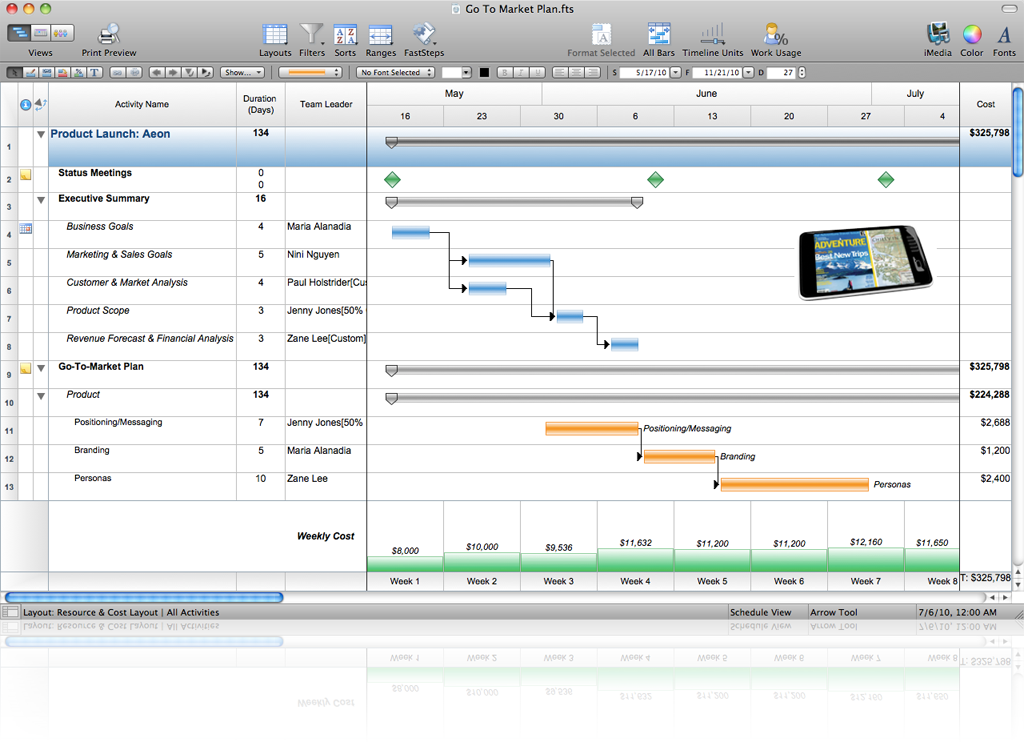
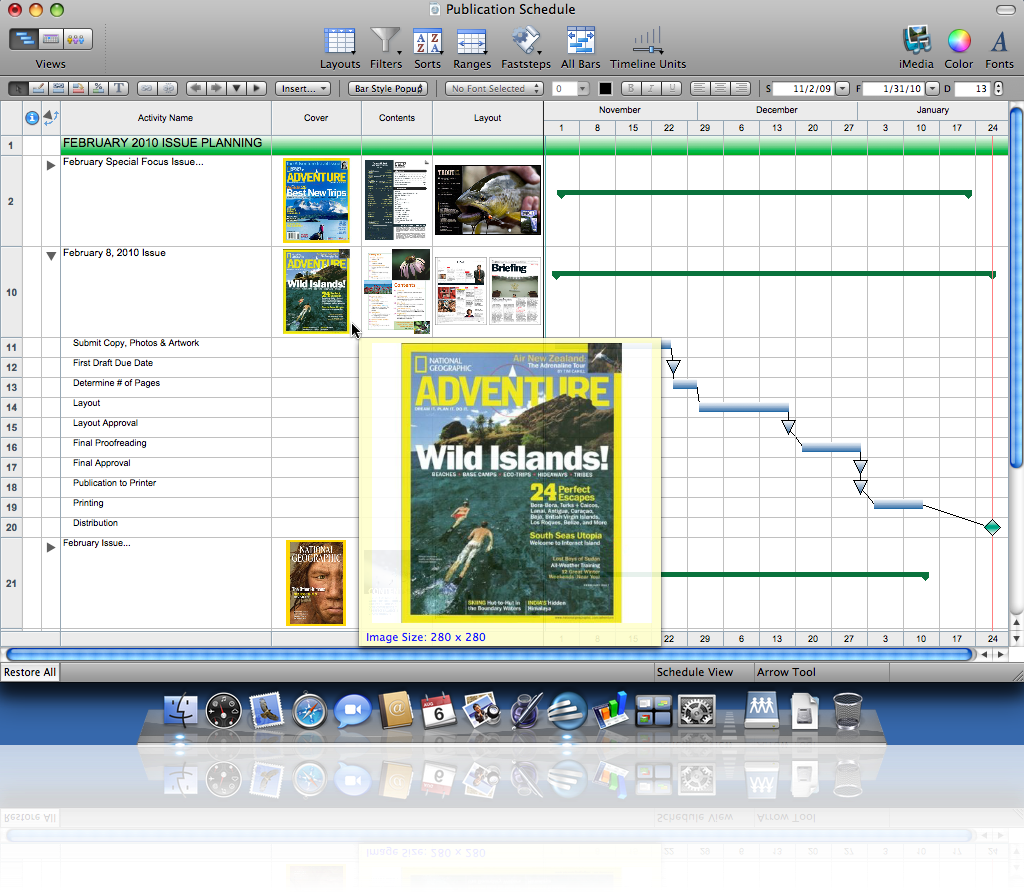
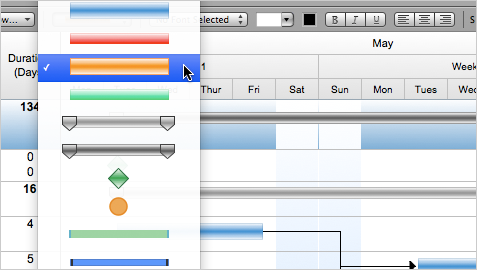
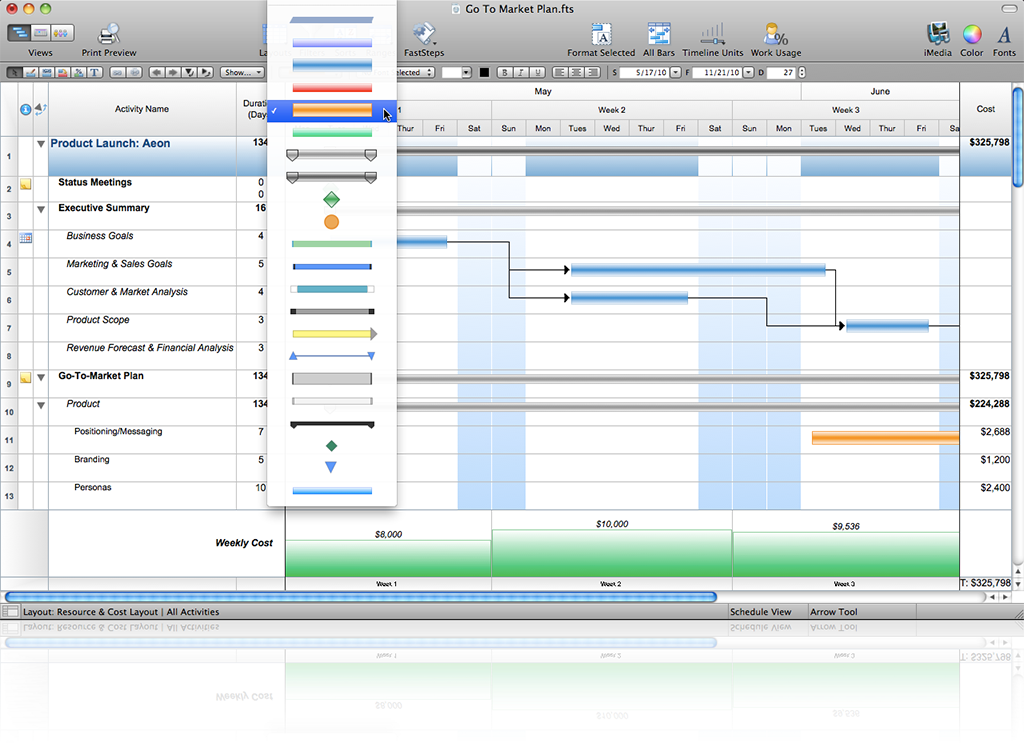
Redesigned interface with new icons, toolbars, cursors, and bar styles
Save valuable time organizing and formatting your schedules with FastTrack Schedule 9’s new, more intuitive Aqua interface. You’ll have faster, easier access to the tools you need to be productive.
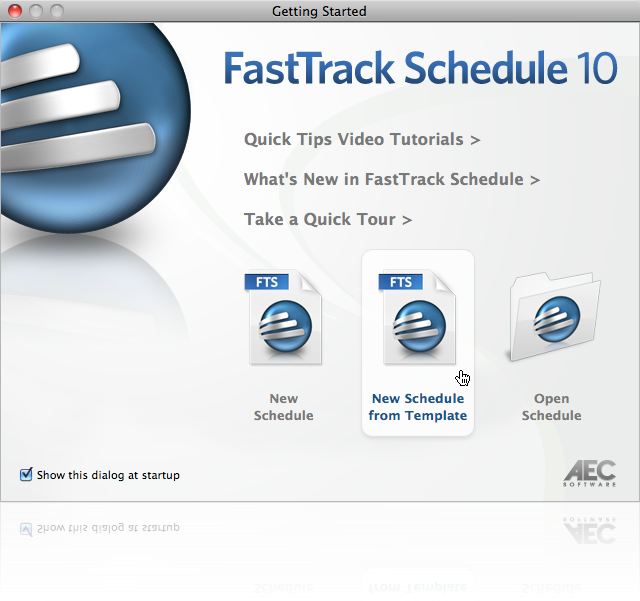
New templates, tutorials, and example files
Get started quickly with a suite of new industry-specific templates and example files, or gain a better understanding of FastTrack Schedule’s unique features by stepping through our comprehensive new tutorials and practice files.
New FastSteps to automate routine operations
Perform repetitive procedures and pinpoint specific project details quickly and easily with new FastSteps macros. Send to Mail Recipient as Picture, Attachment Fast, convenient way to send projects to colleagues and clients. These new time-saving features automatically create a new email message and attach either an entire FastTrack Schedule file or a project snapshot as a picture.
Create and assign resources in the Schedule View
Adding and assigning resources to projects is easier than ever. New resources can now be added to in the Schedule View by simply entering the resource’s name in the Resources Assigned column.
New predefined columns
All data columns are now predefined and clearly organized into ten specialized categories for dates, durations, text, numbers, ID/codes, costs, calculations, hyperlinks, time, and work values.
Go To commands
Three new time-saving commands—Go To Bar, Go To Today, Go To Row—to speed your scheduling.
Drop-down value list indicators
Enter project details faster and more accurately with quick access to value lists. These handy indicators appear when entering and editing values in date/time columns and all columns containing value lists.
FastSelect within dialogs
No more scrolling through lengthy lists to locate the item you’re looking for, lists within dialogs are now clairvoyant and auto-scroll to the item you’ve typed.
New layouts, filters, ranges
Pinpoint, organize, and report project details faster and more effectively with new filters, layouts, and ranges in the Schedule and Resource Views.
Column Map
Especially useful when importing and exporting project details, the Column Map provides a quick reference to each column’s default name, custom name, and whether data in that column is stored per row or per bar.
Project Information form
Define a project’s start date and time and view the finish date and time within one central dialog.
New keyboard shortcuts and improved navigation
We've improved cell navigation, added new keyboard shortcuts, and revised others to make them more intuitive.
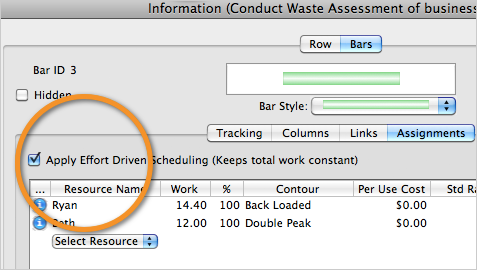
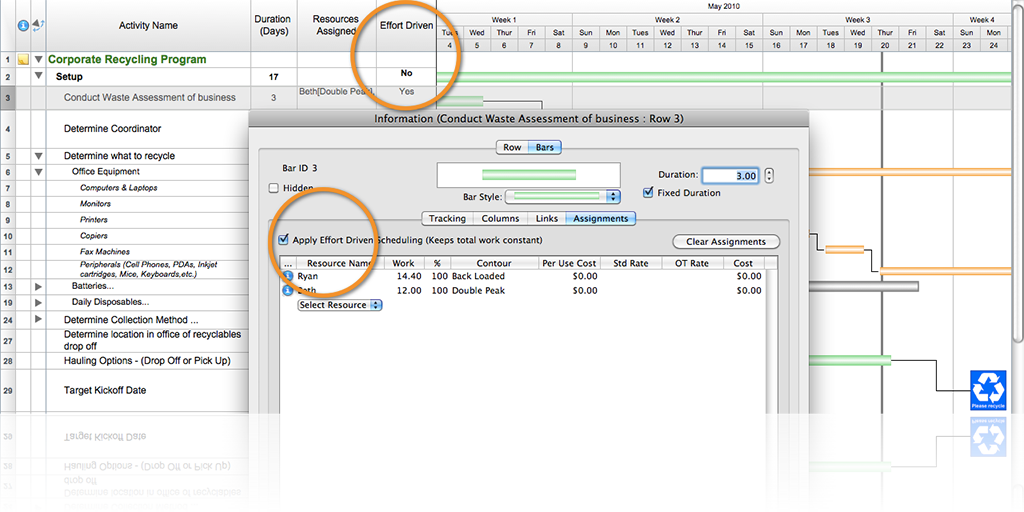
Information form enhancements
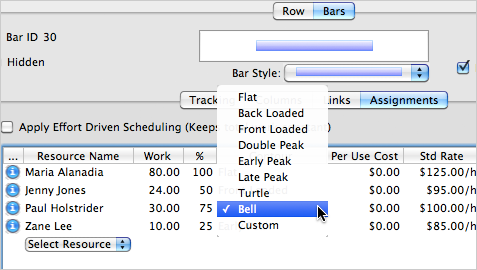
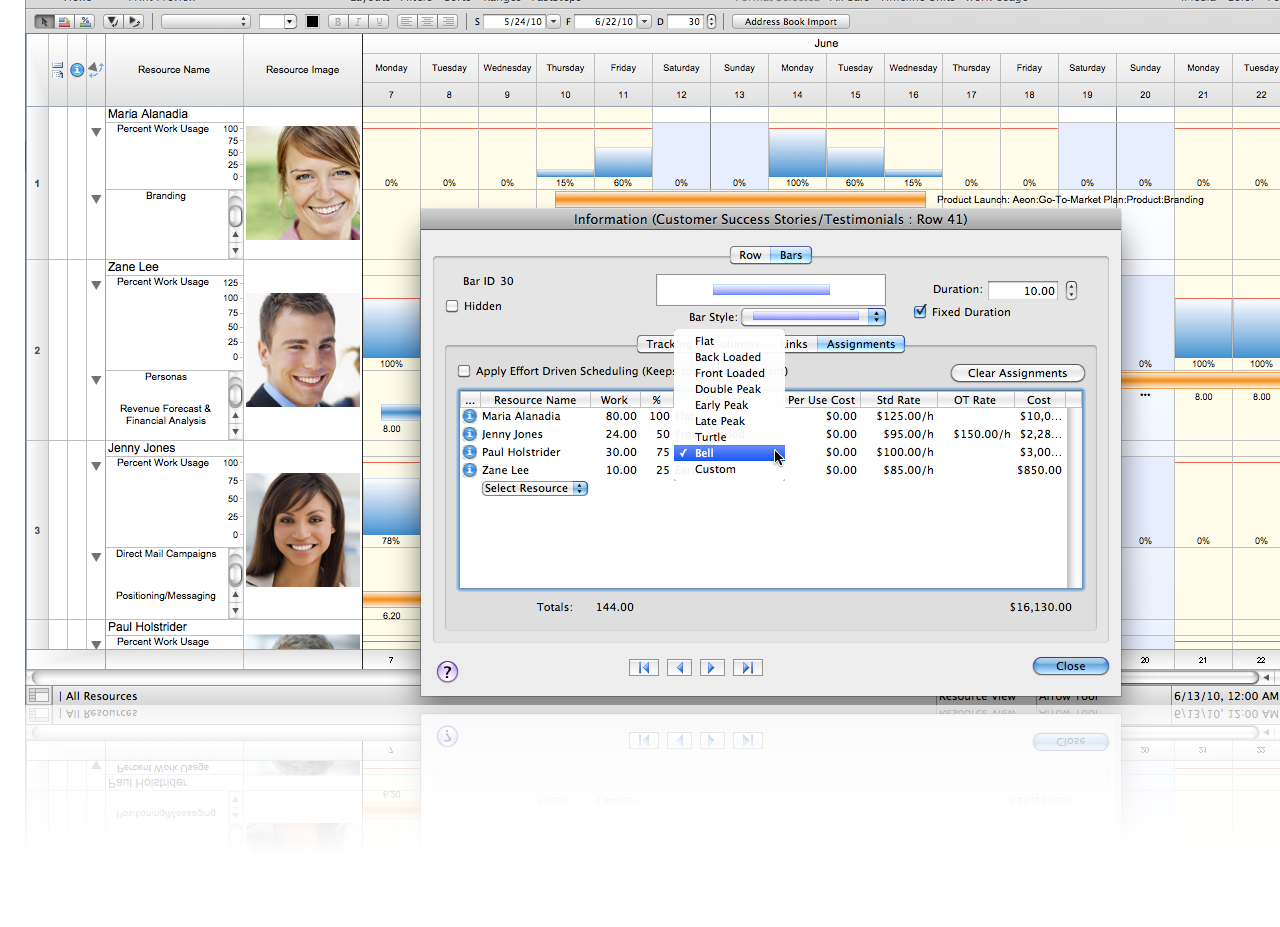
One of the most important forms within the program has been overhauled and redesigned for improved usability. Navigating though this key dialog and entering task information is faster and more intuitive.
Enhance the presentation of project plans
Project Start and Project Finish Datelines
Display the first and last day of a project life cycle with these helpful indicators that clearly signify a project’s start and finish date in the Schedule View.
Custom Datelines
Signify key dates within your schedule with custom datelines. Create up to ten datelines, each with their own unique color and formatting.
All Bars Range
With a single click, automatically expand the timeline range to view all activities.
Smart icons for consolidated projects and notes
These helpful icons within the Information Form Action Column clearly identify consolidated projects and special comments regarding particular tasks.
Calendar View enhancements
In addition to overall presentation improvements within the Calendar View, enhancements have been made to all display labels including those on bars and the calendar title.
- Improved text wrapping for bar and milestone labels
- Current day shading
- More Calendar title options
Autofit Calendar
Similar to AutoFit Schedule, this convenient feature optimizes the format of the Calendar View—automatically adjusting the width and height of gridlines in the Calendar to display all project tasks.
Globally show or hide summary bars/datelines
Enjoy full control over the amount of project detail with easy controls to show or hide summary bars and datelines.
Resource View enhancements
New background row colors and other formatting enhancements make the Resource View easier to use.
Customize the start of a week to any weekday
Because all workweeks are not created equal, you can now set workweeks to begin on any day of the week.
Separate application and file preferences
Set custom preferences for both the application and for individual files.
Currency preferences per file
Set currency preferences on a file by file basis.
Improved Online Help System
Find help faster with our new Online Help System. Revised tutorials, updated tutorial practice files, and new help topics documenting the many Version 9 new features and enhancements. And when you upgrade to Version 9, you will receive free Technical Support for 60 days.
Universal through and through
FastTrack Schedule 9 is optimized for Intel-based Macs and runs natively on both the Intel and PowerPC-based Macs. Mac users can even collaborate with team members on the other platform running the compatible Windows version of FastTrack Schedule.
Cross-platform compatibility
For teams operating in a mixed environment, files are cross-platform compatible between the Windows and Mac versions of FastTrack Schedule 9.
Concurrent-User Versions
When upgrading, you can consolidate your single-user licenses into a Concurrent-User Version of 5 users or greater. With the Concurrent-User version you can even set a global default schedule for all users within your organization and capture preferred settings for layouts, filters, sorts, bar styles, and milestones.
FastTrack Schedule 9 also includes numerous enhancements to many of the program's existing features, including:
Resource View
Calendar View
Schedule View
Context menus
Work Calendar
Layouts
Default file
Preferences
FastSteps
Filters
Dialogs
Summary graphs
Value lists
Action Columns
Print Preview
|
|
|